Debugging Websites on Android
2025/12/19
|
5 mins to read
|
Share article
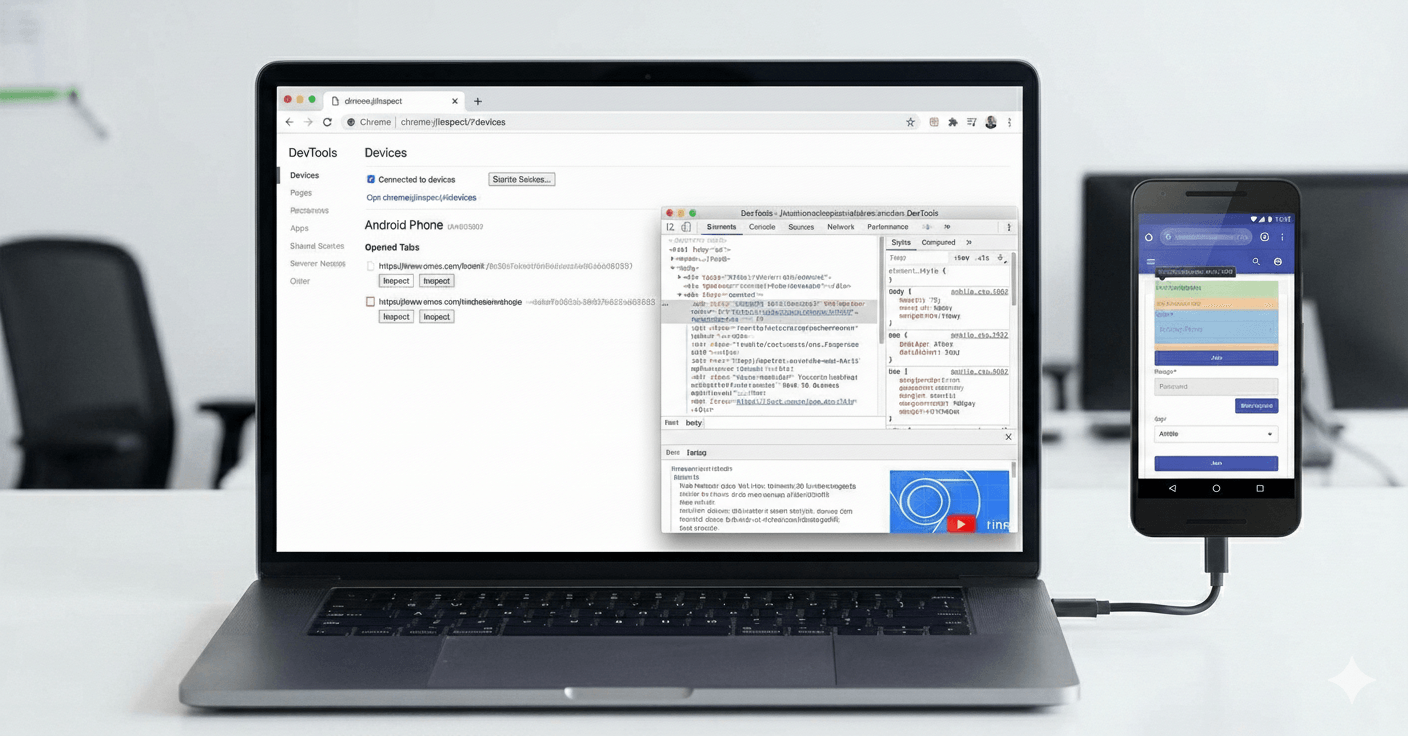
The website works fine on desktop, but on mobile it behaves strangely. No clear errors, no useful logs, no DevTools.
What’s the real problem with debugging on mobile?
When a bug only happens on mobile, you’re usually stuck. You can’t easily open the console or inspect the DOM like you do on desktop.
That’s why many developers fall back to temporary workarounds:
- Using
alert()instead ofconsole.log - Guessing that “it’s probably broken here”
- Changing code without knowing where the real problem is
These approaches are time-consuming and often ineffective.
What’s the solution? Remote Debugging with Chrome
Chrome provides a very simple yet powerful feature that lets you inspect a website opened on an Android device directly from your desktop.
It’s essentially the same DevTools you use on desktop, just connected to the mobile browser.
How to enable Remote Debugging
- Connect your Android device to your computer using a USB cable.
- Make sure Chrome is open on the device and your website is loaded.
- In Chrome on desktop, type the following in the address bar:
chrome://inspect - You’ll see the connected device and the open tabs on it.
- Click Inspect next to the tab you want to debug.
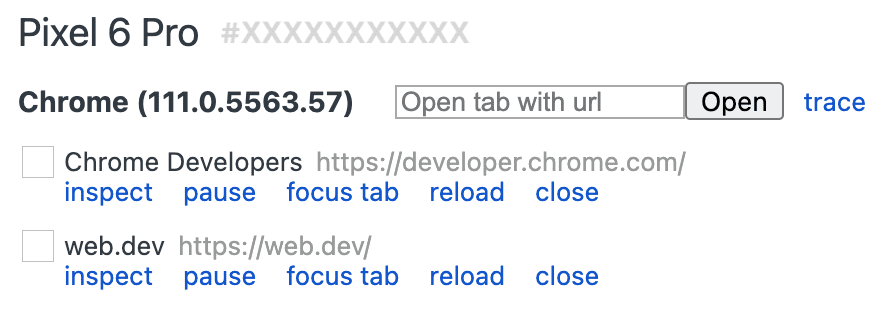
That’s it.
Debugging Android apps that use WebView
This method is not limited to websites opened in Chrome on mobile. If you’re working with an Android app that loads content inside a WebView, you can use the exact same approach to debug it.
As long as:
- The WebView uses Chrome WebView
- And WebView debugging is not disabled
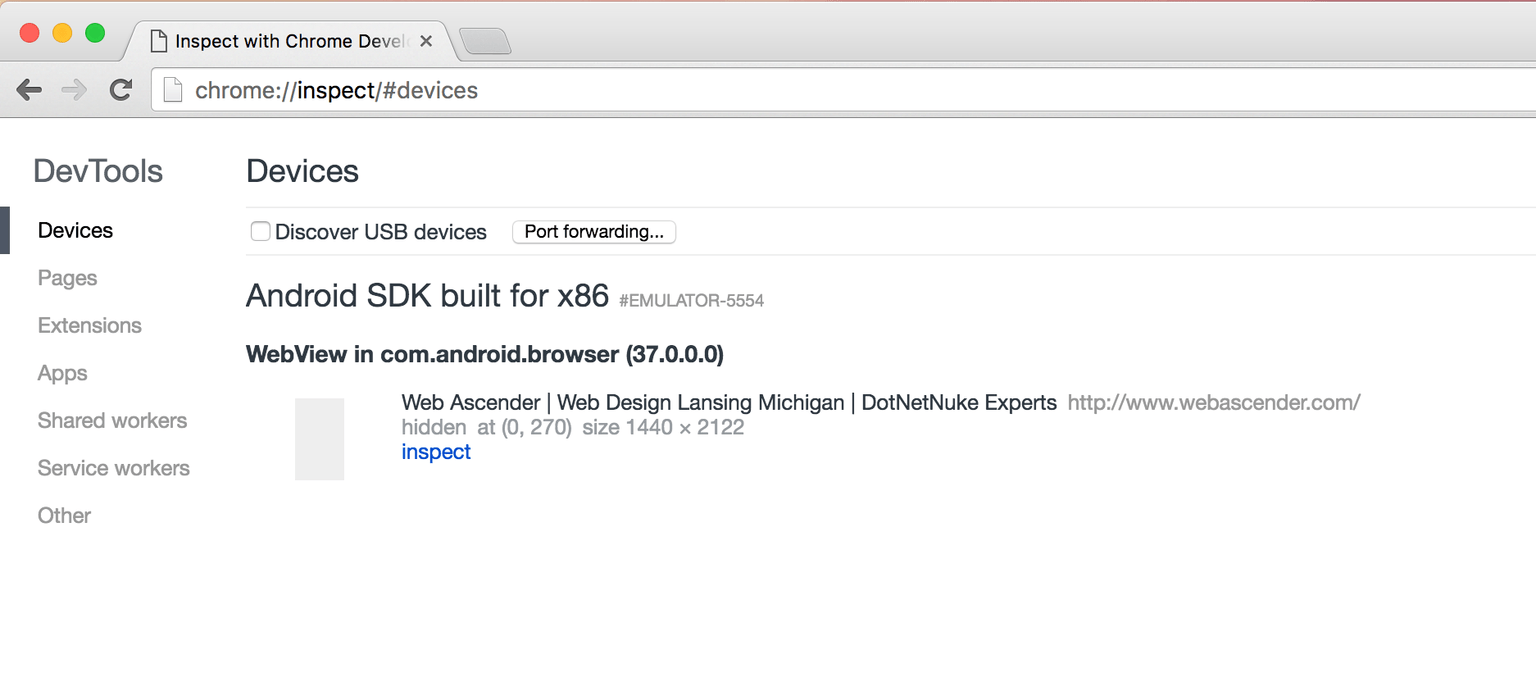
In this case, the WebView will also appear inside chrome://inspect,
and you can inspect it just like a regular browser tab.
Instead of a website URL, you’ll usually see the app’s package name or the WebView title.
An important note that might save you some frustration
In some situations (especially when working with local environments or restricted networks), Chrome may fail to detect the connected device.
In practice, enabling a VPN often solves this issue.
Alternatively, you can use Microsoft Edge instead of Chrome. It follows a similar approach and sometimes handles network restrictions better.
Official documentation
For more detailed information, you can refer to Google’s official documentation: Remote Debugging on Android
Summary
Debugging on mobile shouldn’t rely on guessing or trial and error. Remote Debugging with Chrome is a clean and professional approach that lets you see exactly where the issue is happening.
If your website behaves strangely on mobile, this is usually the most reasonable first step.