Chrome Overrides
2026/02/22
|
6 mins to read
|
Share article
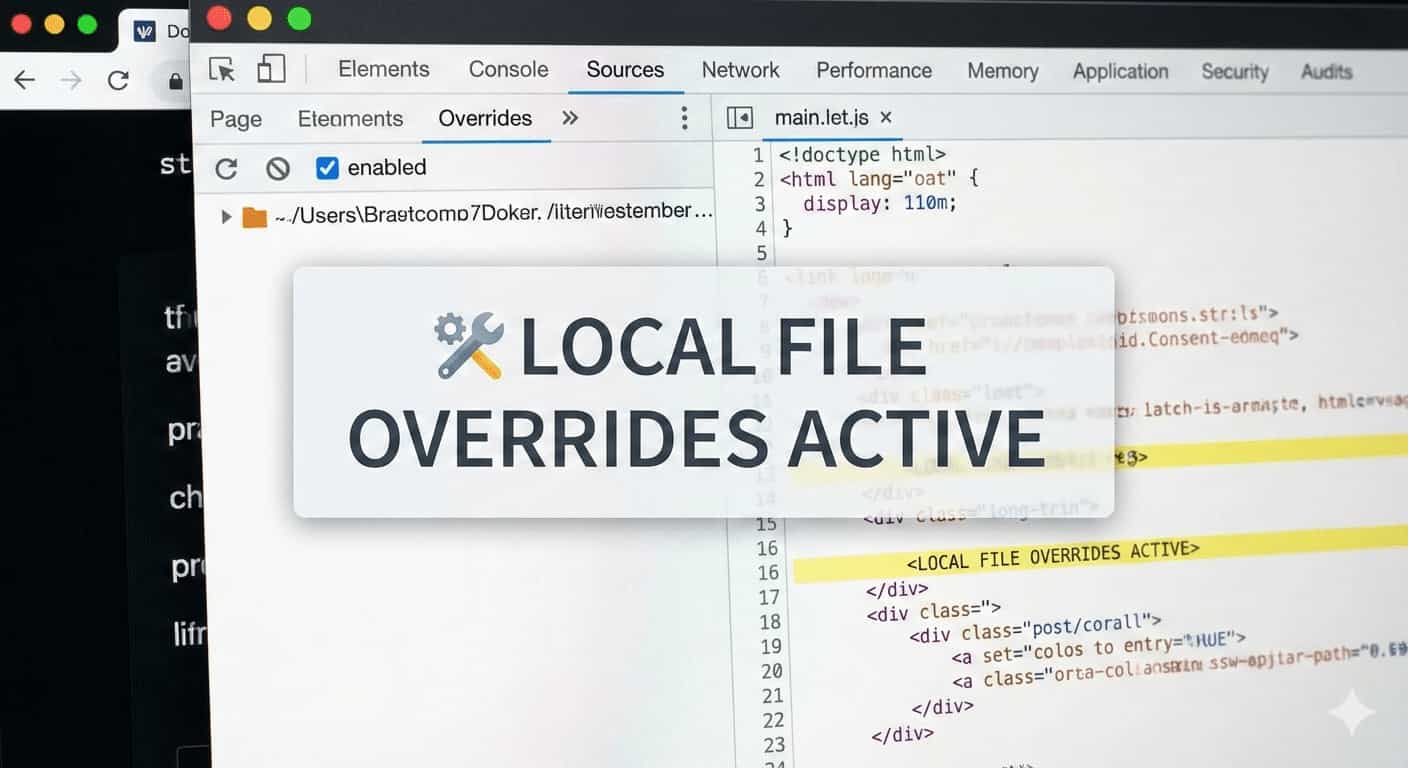
You don’t always need to spin up the whole project just to test a small change.
What Exactly Is Chrome Overrides?
The Local Overrides feature in the DevTools of Google Chrome allows you to modify files loaded from the server (CSS, JS, even API responses) locally — without touching the original source code.
Instead of using the version served by the server, the browser uses the version you’ve saved locally.
That means:
- You can modify CSS and keep the changes after refresh.
- You can temporarily patch JavaScript.
- You can manipulate the response of a network request.
All of this directly inside DevTools.
Why Is Overrides Useful?
1. Debugging on Production
Sometimes a bug only happens in production. You don’t have direct access to the source, and you don’t want to deploy a quick patch just to test something.
With Overrides, you can:
- Add a
console.log. - Temporarily change a condition.
- Comment out a piece of code.
Without changing anything on the server.
2. Mocking an API
This is one of the most practical use cases.
You can:
- Modify a JSON response.
- Simulate a 500 error.
- Create edge-case data.
- Even manipulate headers.
It’s especially useful when the backend isn’t ready yet or when you need to test a specific scenario.
How to Use Chrome Overrides
Step 1: Enable Overrides
- Open DevTools (
F12) - Go to the Sources tab
- In the left panel, open the Overrides section
- Click Select folder for overrides
- Choose a folder on your system and grant access
From this point on, any file you override will be saved inside that folder.
Step 2: Save a File for Override
- Go to the Network or Sources tab
- Open the file you want to modify (for example, a CSS or JS file)
- Right-click and choose Save for overrides
Now any change you make:
- Will be saved in that folder.
- Will persist after refresh.
Overriding a Request Response
- Open the Network tab.
- Click on the request you want to modify.
- Right-click → Save for overrides.
- Edit the response as needed.
For example, you can change a JSON payload or modify the value of a specific field.
You can find the official documentation on the Google website: https://developer.chrome.com/docs/devtools/overrides/
Important Notes
- Changes only apply to your own browser.
- If a Service Worker is active, it may interfere — it’s better to enable Bypass for network in the Service Worker settings.
- In some cases, disabling cache inside DevTools can help avoid unexpected behaviour.
Final Thoughts
Chrome Overrides is a simple tool, but it can significantly speed up your debugging workflow.
Instead of spinning up the entire project for a small tweak, you can test, adjust, and validate changes directly in the browser.
If you’re a frontend developer and haven’t used it yet, you’re probably not using the full power of DevTools.